Guide
Bug report template
Copy a report template and describe a website issue someone can reproduce.
Explore guide Mobile Viewer
Website in 52 languages
Show what happens on your website
Looking for a screen recorder extension for Chrome to demonstrate a website? Mobile Viewer records your current tab or a selected mobile preview. Show a menu opening, a form changing, or a layout issue as it happens, then save a video to your computer. The recording controls are part of the free website preview extension.
Free browser extension · No account required · Runs on your computer
Record a single device when the point is specific: a mobile navigation panel, a card that shifts, or a button that becomes hard to reach. Set its dimensions and orientation before starting so the viewer can understand which layout you are showing.
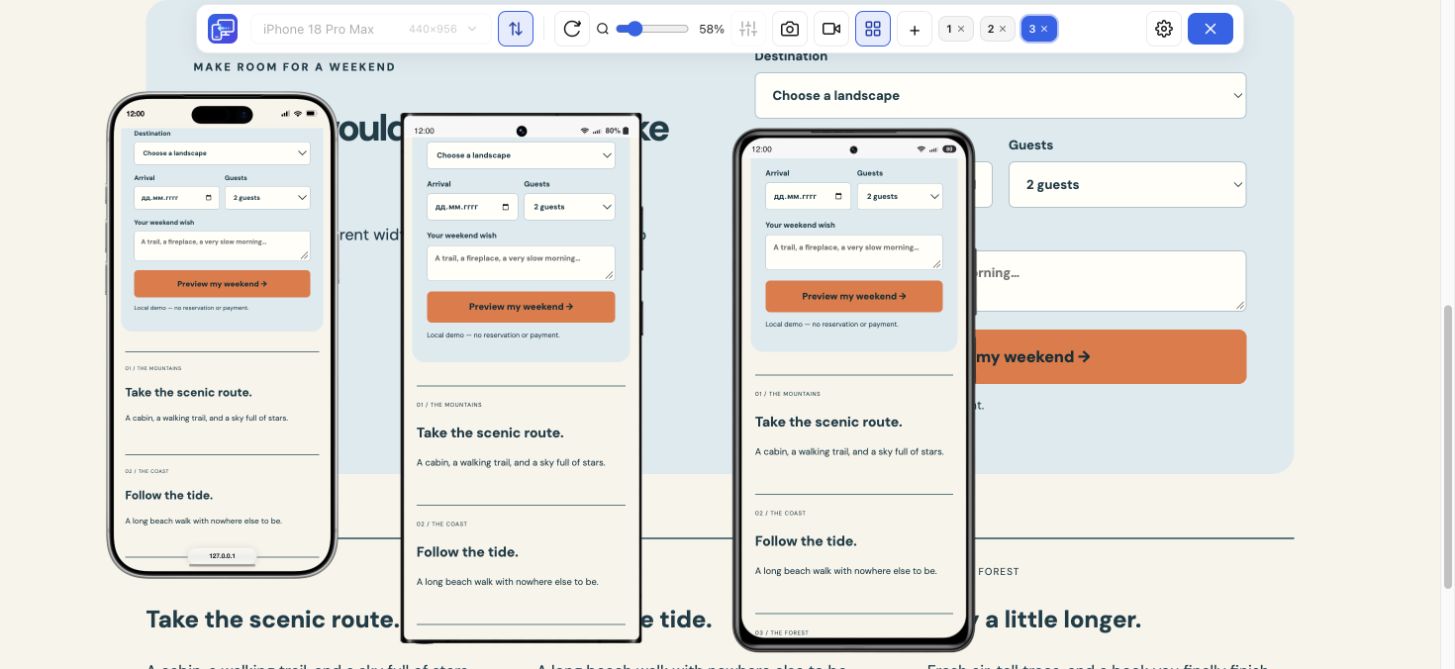
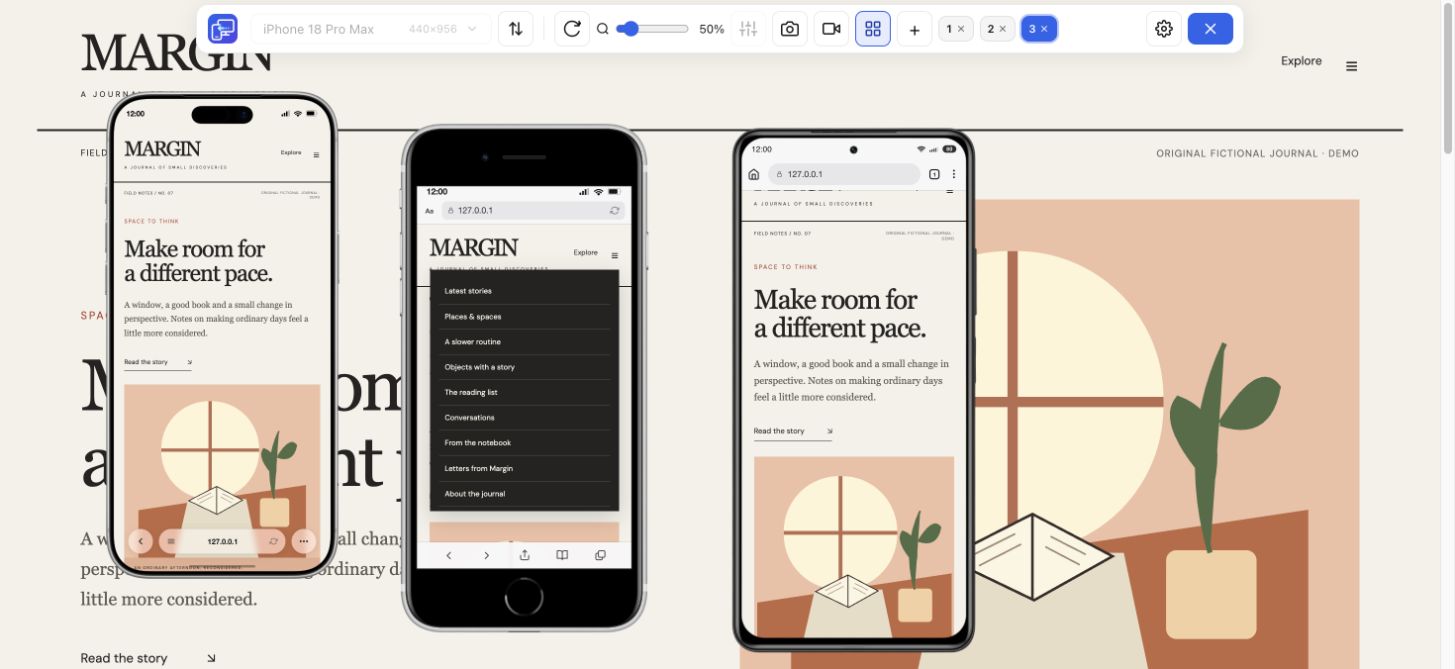
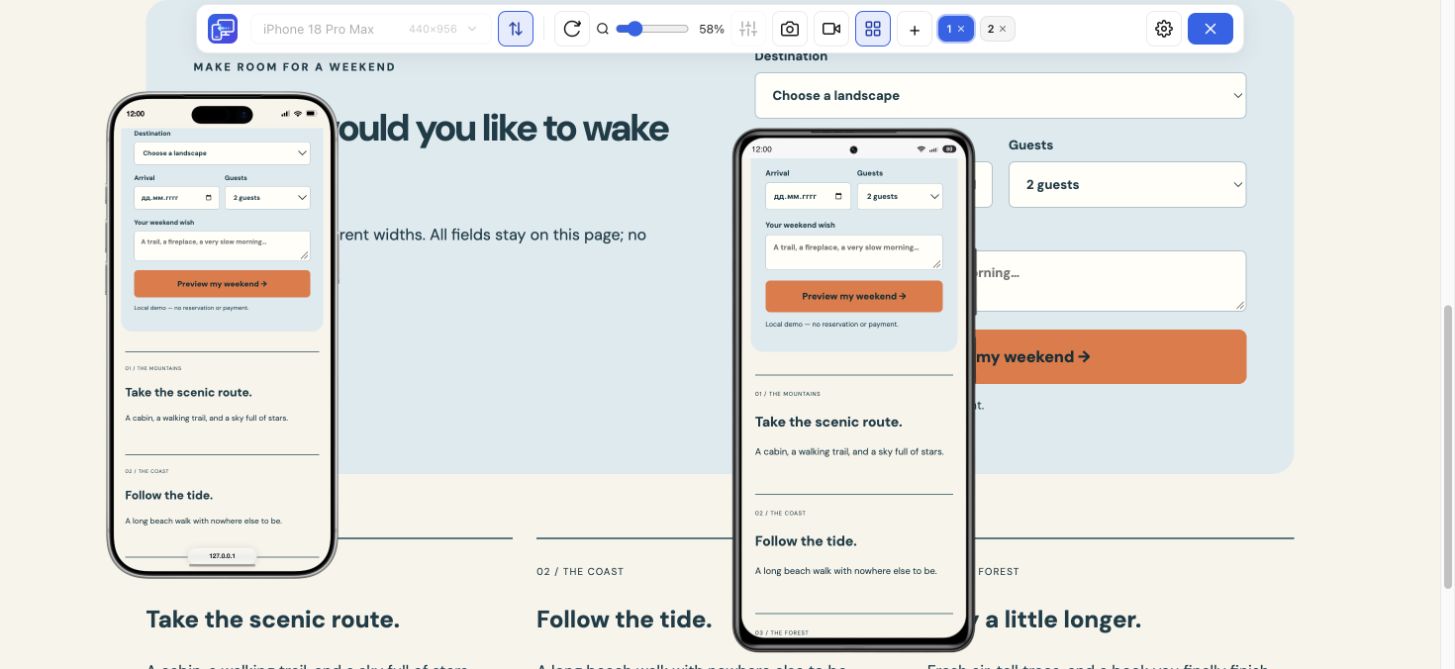
Use the whole-tab option when the desktop page and several mobile previews tell the story together. Multi-view supports up to five mobile previews beside desktop. A tab recording can show the contrast between sizes without requiring separate clips for every viewport.
Start at a page your audience recognizes. Perform one task from beginning to end, such as opening navigation and finding the contact page. Pause briefly at the state you want someone to notice. A concise sequence is usually easier to review than a long recording of unrelated actions.
For a side-by-side demonstration, turn on Sync to mirror supported scrolling, clicks, and ordinary input across previews. Turn it off when you need different states in each device. Keep the preview workspace arranged before recording, rather than spending the clip moving frames.
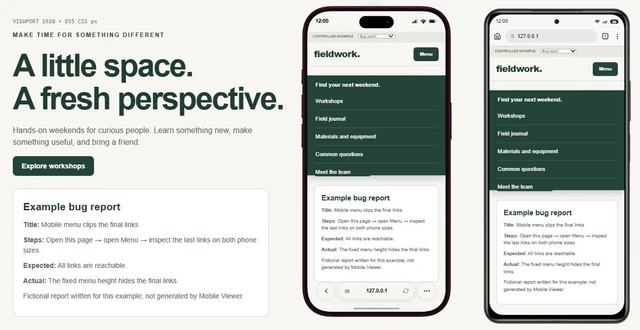
A useful bug report includes the starting page, dimensions, orientation, actions, and expected result. Record the sequence that produces the problem, including the state just before it occurs. Attach the saved video to the issue using your usual project tools.
For example, open a long mobile menu, scroll to its last link, and show whether it remains reachable. Repeat at a wider size if that contrast helps explain the issue. For one static state, the focused-device PNG may be clearer than a video; use recording when the transition matters.
Start the recording from the extension’s video control and stop when the sequence is complete. The output uses MP4 when a supported encoder is available, with WebM as a fallback. Check the saved file before sending it, especially if the recipient needs a particular format.
Mobile Viewer is a Chrome screen recorder for the website workspace. It does not provide a video editor, a webcam overlay, or a hosted sharing link. Audio capture is not guaranteed. If your task needs those features, choose an additional recording or editing tool that supports them.
Use an HTTPS website or a local HTTP development page on localhost or 127.0.0.1. Save unfinished input before first activating the extension, because activation may reload the page. For form demonstrations, use ordinary sample data and check which page states will be visible in the final clip.
A recorded phone preview still uses desktop Chrome. It documents what happened in that preview, rather than proving how Safari, a native app, or an actual phone behaves. Include the environment in the report and verify device-dependent problems on the relevant hardware.
Install Mobile Viewer, open your page, and activate the extension. Choose a device and orientation, or arrange several previews for a whole-tab demonstration.
Use the video control to choose a device or the whole tab. Start recording, carry out the short sequence you want to explain, and stop when it is complete.
Save the resulting MP4 or WebM, play it back, and attach it to your bug report or demonstration. Add viewport dimensions and reproduction steps where relevant.
Yes. The whole-tab option captures the current tab with your preview workspace. You can also choose a selected device when only one mobile view matters. It is not a general desktop or webcam recorder.
Yes. Choose the device and orientation, then use device recording to capture its interaction sequence. The preview is rendered in desktop Chrome; it is not a recording from a physical phone.
No. MP4 depends on encoder support. A recording may save as WebM instead, so check the file format before sharing it.
No. The extension is free and does not require an account. Save the video locally and share it through the tools you already use.
In Mobile Viewer, choose a device or the whole tab, start recording, and walk through the relevant steps. Save the clip locally to attach to your demo or bug report.
Install extensionChrome Web StoreFreeFree browser extension · No account required · Runs on your computer
Guide
Copy a report template and describe a website issue someone can reproduce.
Explore guideFeature
Follow a user journey across mobile sizes and record what needs fixing.
Explore featureFeature
View the current website on mobile sizes alongside its desktop version.
Explore featureGuide
Follow the steps for Chrome Device Mode or use Mobile Viewer beside desktop.
Explore guide