Stay in desktop Chrome
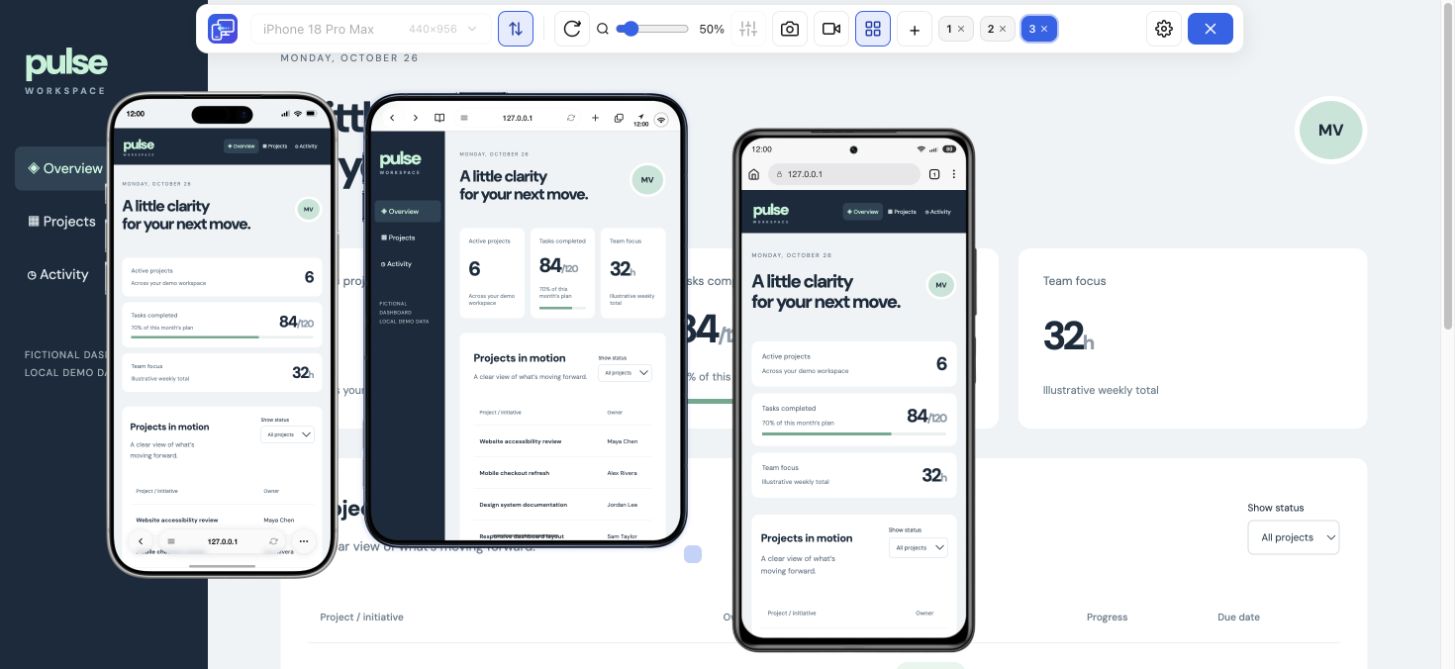
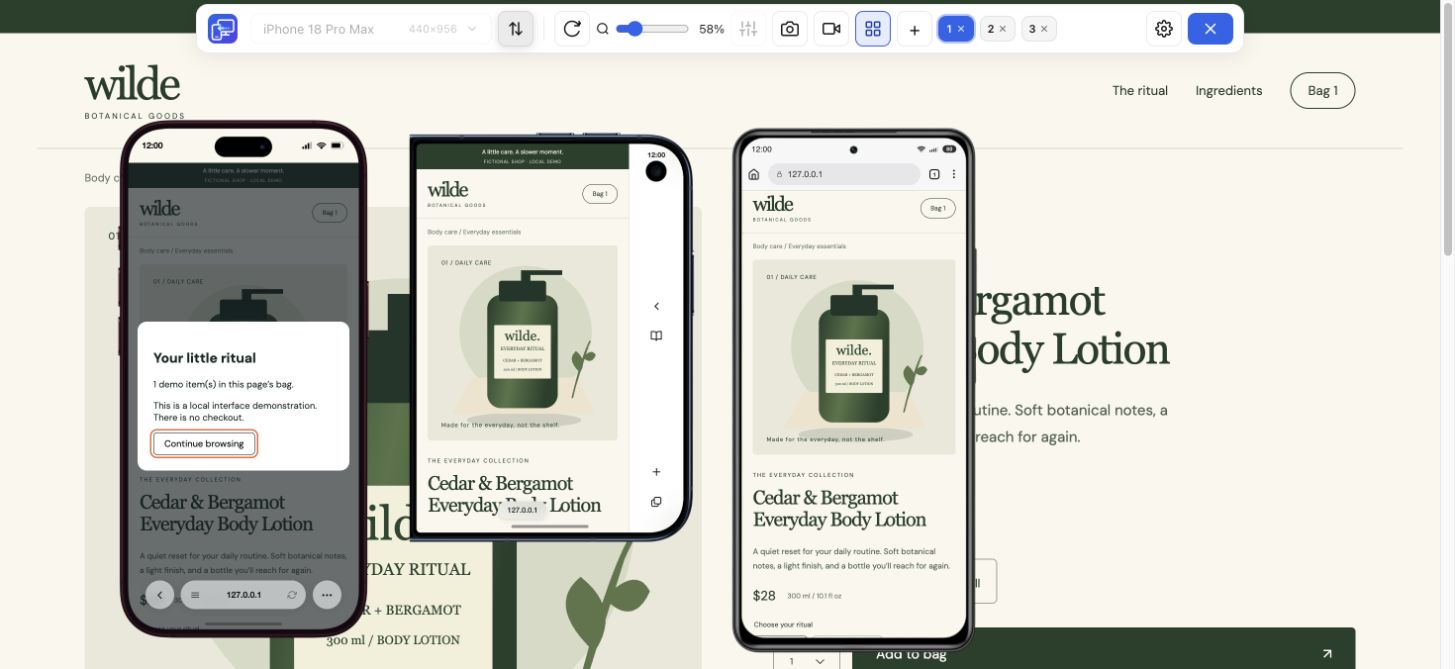
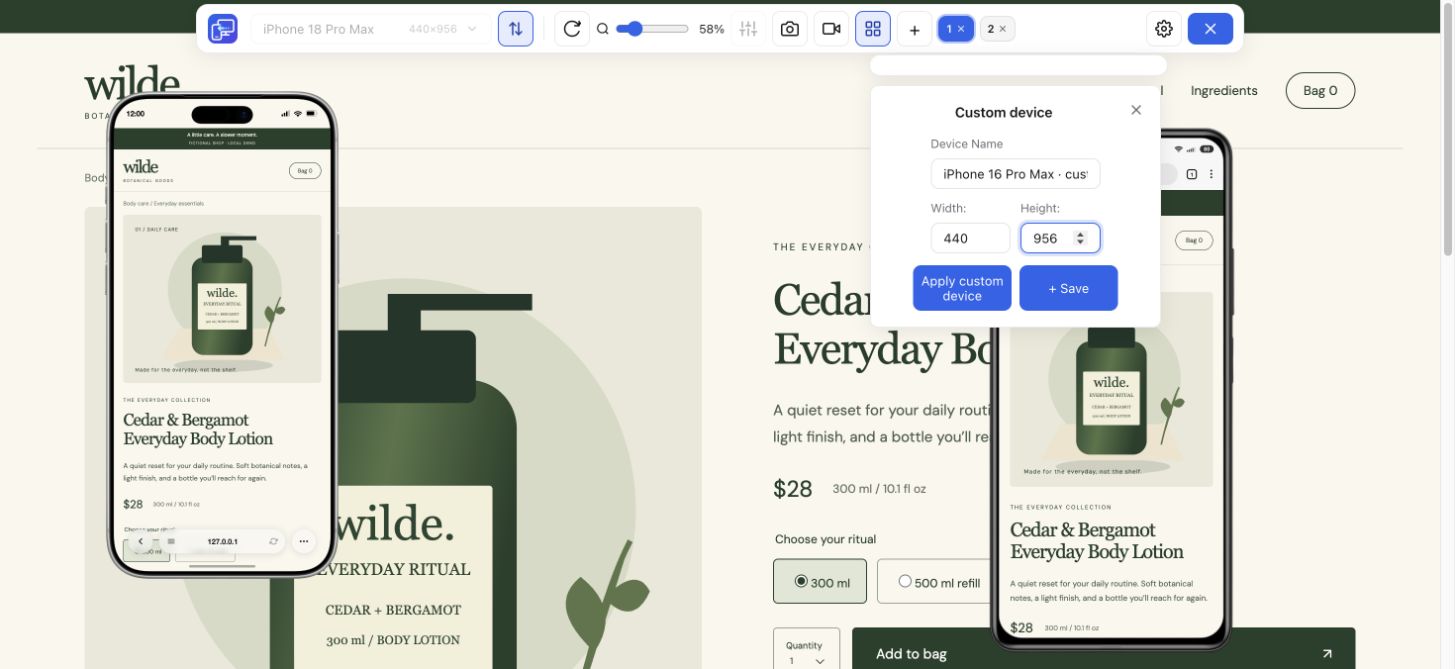
Choose Mobile Viewer when the useful next step is to preview the page already open in your normal browser workspace.
The workspace matters too
Looking for a Responsively alternative because you want device previews beside the page already open in Chrome? Mobile Viewer brings a responsive comparison into that workspace. Both tools help you inspect several sizes, but they organize the work differently. Choose the one that supports the way you edit, inspect and share a page.
Read the guideStart with the friction you want to remove, rather than a long feature checklist. If a dedicated development browser already fits your work, keep that advantage in the decision.
Choose Mobile Viewer when the useful next step is to preview the page already open in your normal browser workspace.
Consider Responsively when its unified inspection and responsive-browser workflow are central to your work.
Match the capture tool to the output. A selected-device PNG, a video walkthrough and batch full-page screenshots are different deliverables.
Responsively’s official site describes mirrored interactions, a unified inspector and full-page or multiple-device screenshot tools. Mobile Viewer focuses on previews in Chrome, configurable Sync and selected-device or tab evidence. Check the exact feature you depend on before switching.
| Task | Mobile Viewer | Responsively |
|---|---|---|
| Workspace | Chrome extension beside your desktop page | Dedicated developer browser application |
| Several screen sizes | Up to five mobile previews beside desktop | Multiple device previews in its workspace |
| Shared interaction | Configurable Sync for supported interactions | Mirrored interactions |
| Inspect elements across previews | Use Chrome’s inspection tools as appropriate; no unified inspector | Unified inspector |
| Save a screenshot | PNG of the selected device; no full-page batch capture | Full-page and multiple-device screenshot tools |
| Share a walkthrough | Record a selected device or the entire tab | Check the app’s current capture options for your required output |
Choose one page with a menu, repeated cards and a form. In Mobile Viewer, open it in Chrome and add a compact phone, a wider phone and a tablet. Position the previews beside desktop and decide whether Sync helps you compare the same state.
Follow one task: open the menu, reach the form and inspect an error with fictional test data. Rotate one preview. If this keeps your edit-and-check cycle comfortable, the extension may fit your daily layout work. If you need a unified element inspector or batch full-page captures, keep those requirements explicit.
For one clipped control, a selected-device PNG plus dimensions may be enough. For a sequence that loses its state after navigation, record a short device or tab walkthrough. Include the steps and expected result so the recipient can reproduce the finding.
Neither a responsive preview nor a device frame proves real Safari or Android browser compatibility. Use actual target environments for engine-specific issues, keyboards and hardware behavior.
It can be an alternative for manual responsive previews and shared interactions when you prefer working in Chrome. Compare your inspection and capture requirements before replacing a dedicated developer browser.
No. Mobile Viewer does not provide a unified inspector across its previews. Use the inspection workflow appropriate to your browser, or choose a tool that provides that feature.
No. Its PNG capture targets the selected device. Use another capture workflow when you need full-page batch screenshots.
The current Mobile Viewer Chrome extension is free. Install it and compare one real page before deciding whether its workflow suits you.
Keep the page you are working on, add a few device sizes and follow one visitor journey. Install Mobile Viewer and see whether the workflow fits.
Install extensionChrome Web StoreFreeFree browser extension · No account required · Runs on your computer
Feature
Inspect layout changes at several screen widths and around your breakpoints.
Explore featureGuide
Decide when a Chrome preview is enough and when you need real-device testing.
Explore guideFeature
Install once, open your website, and preview mobile layouts in the same tab.
Explore feature